“Lalawora” Documentation
“Lalawora Coming Soon Page”
Created:15 March 2013
By: ridianur
Thank you for purchasing my template. If you have any questions that are beyond the scope of this help file, please feel free to email via my user page contact form here. Thanks so much!
Table of Contents
A) HTML Structure - top
This coming soon page is a responsive layout. All of the content area is divided within a <section> element.The sections are section with id home, section with id content and section with id footer.
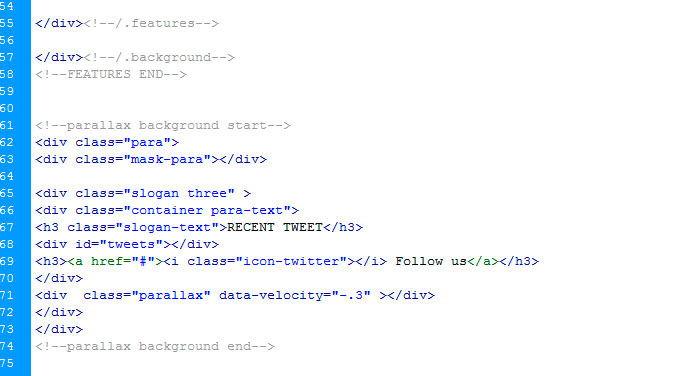
Every file have many comments within HTML code explaining it’s role part by part. Additionally every part of the code is marked by " <!--name content start -->" and "<!--name content end -->" or <!--/.class or id content--> comments, e.g:
B) CSS Files and Structure - top
Im using many css files in this theme. Because some page need different styling.
List of css and use:
style.css This file is used to provide default layout style
font-awesome.css This file is used for icon.
supersized.css and supersized.shutter.css This file is used to provide slider style.
and some files from bootstrap
Those files contain all of the specific stylings for the page. This file is separated into sections using:
	/* -- Header Section ---*/

	some code

/*-----Header Section end---/


	/* ----Main Section ---*/

	some code

/*-----Main Section end----*/


	/* ----Sidebar Section ---*/

	some code

	/* ---- Footer ---*/

	some code

	etc, etc.
If you would like to edit a specific section of the site, simply find the appropriate label in the CSS file, and then scroll down until you find the appropriate style that needs to be edited.
C) JavaScript - top
This theme imports three type of Javascript files.
- jQuery
- My custom scripts
- Some plugin
- jQuery is a Javascript library that greatly reduces the amount of code that you must write.
- Most of the animation in this site is carried out from the customs scripts. There are a few functions worth looking over.
Some of script are trigger inside
script.js
//Script something start... //some explanation...
- Some plugin can be edit. It has some explanation inside it. For further edit this script you can visit the plugin page for more documentaion. Some of the plugin i use are :
- Supersized
- Jquery Countdown
- contact.js and subscribe,js for ajax contact and subsribe
- some bootstrap javascript
- *the rest you can find in js folder
D) Some Suggestion - top
For Slider:
You can change the background image in script.js file. Its below the comment
//slider setting
For Modal Contact
Its started with comment :
<!-- MODAL START -->
Its based on modal by twitter bootstrap. For better explanation you can check this page
For Icon:
You can simply add any icon you want by putting this code <i class="your-class-icon"></i>
You can check this page for find the icon that you need.
For Shortcode
For further explaination visit this page
For Countdown
Open the script.js and find this comment:
//countdown setting
...
$('div#clock').countdown("2014/06/28", function(event)

...
Change it 2014/06/28 with your desire time
For further information visit this page
For parralax effect
FInd this code in script.js
//parallax setting
$('#supersized').scrollingParallax({
staticSpeed : 1.18,
staticScrollLimit : false
});
staticSpeed is the default speed for parallax scrolling effect. For further explanation you can check this page
For Contact and Subscribe Form
Be sure your host is support php files.
You can open contact.php,contact.js for setting contact section, and subscribe.php,subscribe.js for setting subscribe section.
Contact section can find in modal section in html files.
There is comment in files for explanation.
For Twitter Feed
Open the script.js and find this code:
//script recent Tweets

	    $(function(){

$('#tweets').tweetable({username: 'envato', time: true, limit: 4, replies: true, position: 'append'});

});
change envato with your twitter id .
For further explanation visit this page
E) Sources and Credits - top
I've used the following images, icons or other files as listed.
- Image In Demo Page from Stock Free Images
- Fontawesome
- Scrolling Parralax
- Font Open Sans
- Font TeX Gyre Adventor Bold
- Font Italianno
Once again, thank you so much for purchasing this template. As I said at the beginning, I'd be glad to help you if you have any questions relating to this template. No guarantees, but I'll do my best to assist. If you have a more general question relating to the template on ThemeForest, you might consider visiting the forums and asking your question in the "Item Discussion" section.
ridianur